How to: PBR settings
Author
ARCHITEXTURES
Read time
2 min read
Published
Physically Based Rendering (PBR) maps allow you to create realistic textures that accurately simulate light interaction in 3D modelling software, game engines and architecture workflow. ARCHITEXTURES generates a full suite of maps based on your settings.
0:00
/1:03
Displacement map
Displacement maps physically alter the geometry of a 3D model using greyscale values.
- Logic: dark areas represent recessed regions (low); light areas represent elevated regions (high)
- ARCHITEXTURES default: joints are dark and tiles are light, ensuring joints appear recessed
- Automation: edge profiles, surface finishes and bevels are automatically baked into this map.
- Customisation: click the Displacement icon to overlay source images (greyscale or find edges) onto the map for granular depth detail
Bump and normal maps
Both maps simulate surface detail through light and shadow without altering the actual geometry.
- Bump maps: greyscale images used for micro-details like scratches or imperfections. Tiles are white and joints are black by default.
- Normal maps: RGB images where pixel values represent surface angles (normals). These provide more accurate lighting data than standard bump maps.
- Controls: access both via the Bump icon menu
Roughness map
Roughness map determines how light scatters across the surface.
- Logic: darker pixels indicate smooth/glossy surfaces; lighter pixels indicate rough/matte surfaces.
- Base roughness: use the slider to set a global value from black (polished) to white (matte).
- Image overlay: apply the source image using the “darken” blend mode to add organic variation to the tile’s finish
- Joints : set to 100% rough by default
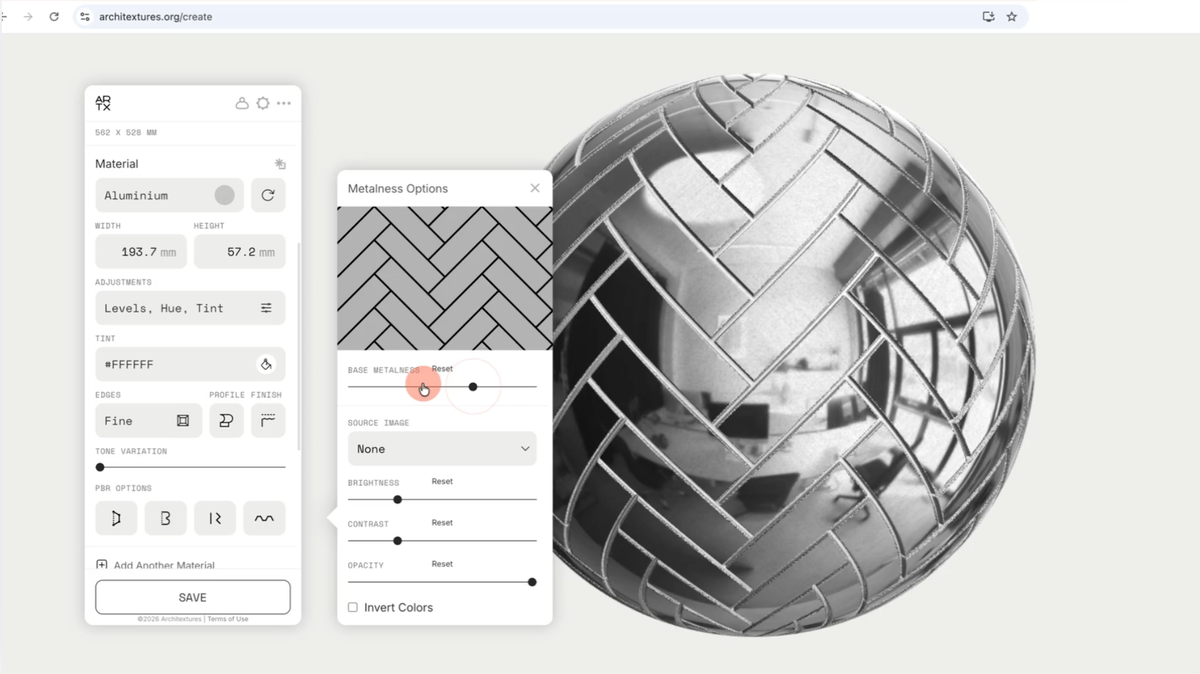
Metalness map
Metalness map defines which areas of the texture reflect light like a conductor (metal) versus a dielectric (non-metal).
- Logic: light pixels are metallic (specular reflection); dark pixels are non-metallic (diffuse reflection)
- Controls: adjust the base metalness slider in the settings menu
- Joints: set to completely non-metallic by default
PBR image options
The following options are available for the source images applied to PBR maps:
- None: no image, only the solid fill will be visible
- Grayscale: a grayscale version of the source image will be used for the tile
- Find edges: a filtered source image that emphasises edges will be used for the tile
💡
Tip: Use the adjustment settings available below the image selector to fine-tune the contrast and intensity of the source image within each PBR map.