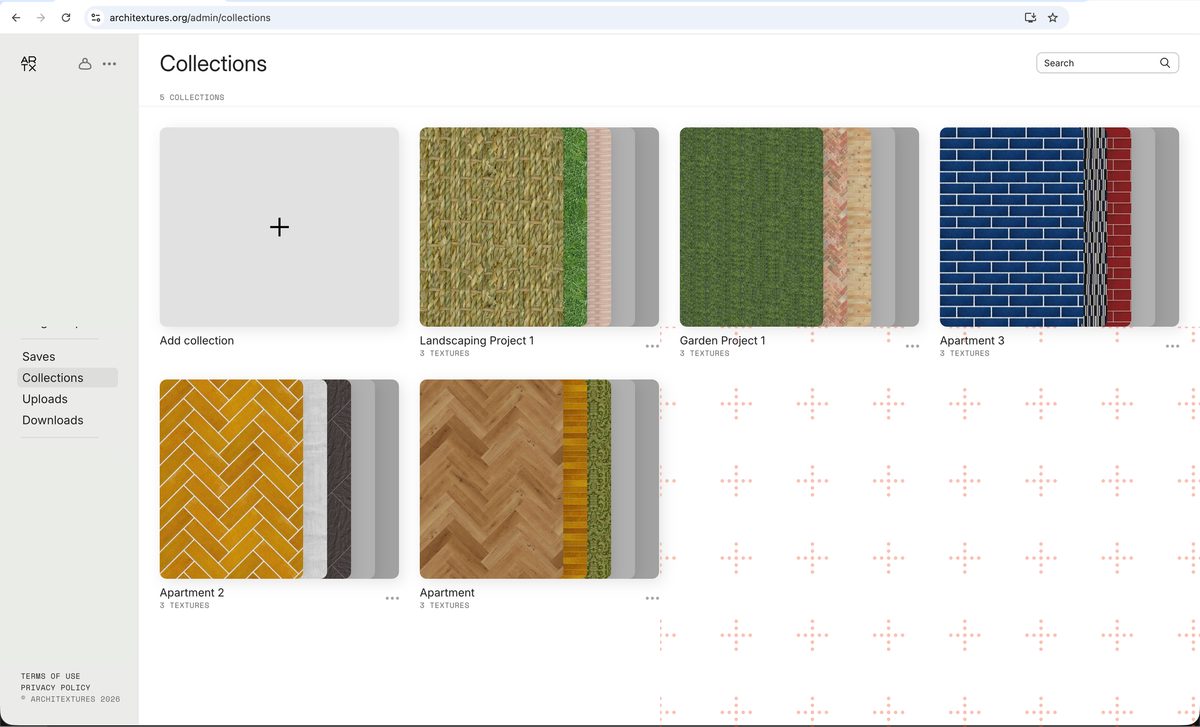
How to: Collections
Author
Architextures
Read time
1 min read
Published
Organise your textures into project-specific groups or mood boards using the Collections feature.
Create and add to collections
You can curate textures directly from the homepage presets or while working within the ARCHITEXTURES Editor.
From the homepage
To quickly bookmark a preset:
- Locate a texture on the homepage and click Save.
- The texture is automatically added to your account.
- Select an existing collection from the dropdown menu, or select Add collection to create a new one.
- Click the folder icon to jump directly to that collection in your admin dashboard.
0:00
/0:21
From the Editor
When finalising a custom texture:
- Click Save at the bottom of the editor panel
- Select Save and Add to Collections from the menu
- Choose your collection or create a new one
- Use the arrow icon to view the collection in your account settings
0:00
/0:27
Manage your library
The admin page serves as the central hub for your organisation. From here, you can perform actions on your saved textures.
Collection management
- Rename and delete: update collection names or remove old folders as projects conclude
- Reorder: drag and drop collections to prioritise your current workflow
0:00
/0:13
Texture organisation
Click into any individual collection to manage its contents:
- Move textures: check the box next to a collection name to add the texture to the group
- Remove textures: uncheck the collection box to remove the texture from that specific group (it will remain in your “all textures” library)
- Custom sorting: rename individual textures or rearrange their order within the collection view
0:00
/0:31
💡
Collaboration tip: Collections are an excellent way to prepare material palettes for your clients. Once a collection is organised, you can easily access the share links for each texture within it to send to your team.